Senin, 22 Mei 2017

Why is my computer so slow?

When you first get a computer, it may seem very quick and able to handle a number of tasks with ease. However, over time you may find that it starts to get slower to respond and particularly if you have a few applications open at the same time.

This guide will give you step by step suggestions for some of the things you can do to free up space and help your computer run faster.
 
You’ll need:
 
  • A computer with Windows 7 installed.
Follow these step-by-step instructions to help your computer run faster
 
Step 1: Empty your recycle bin. When you delete documents etc, they are sent to the recycle bin, so deleting all data in the recycle bin can free up space. Find the recycle bin icon on your desktop. 

 
 
Step 2: double click on the icon and check all the documents and data in the bin to check you are happy to delete everything. Close the bin.
 
Step 3: Right click with your mouse on the recycle bin icon. Choose Empty Recycle Bin from the menu by left clicking with your mouse.
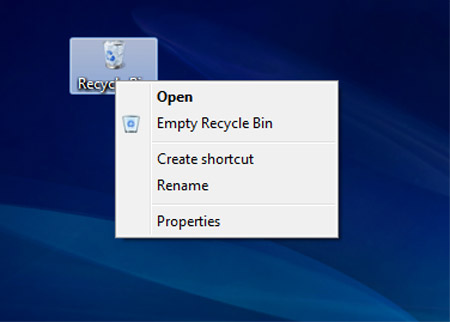
 
 
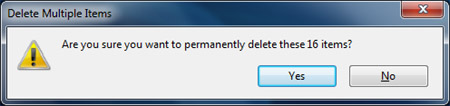
Step 4: You will be asked if you are sure you want to delete the items. Click on Yes. Your recycle bin will be emptied.


Step 5: Uninstall any applications or programs that are not used, as these can take up a lot of hard drive memory and this can cause your computer to run slowly.
 
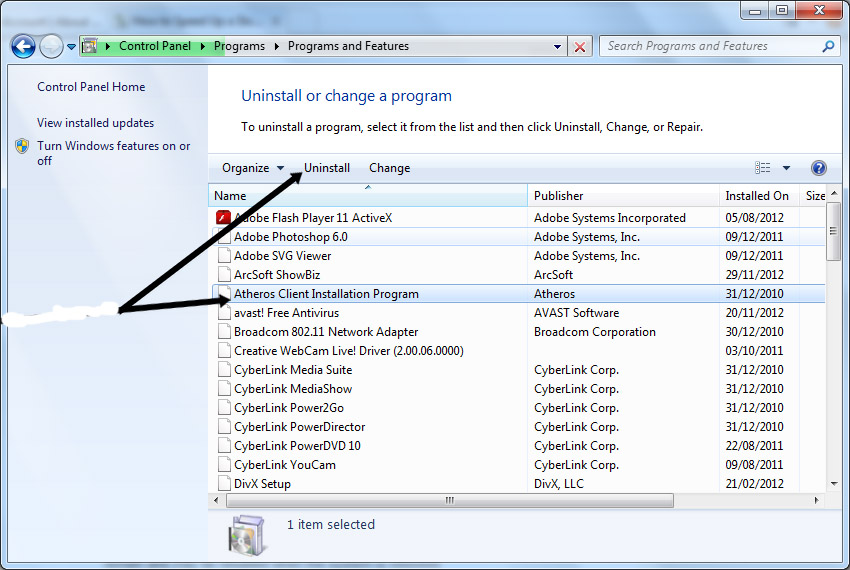
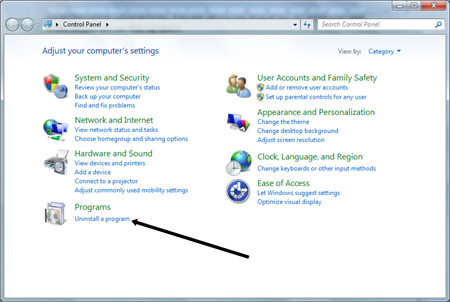
Step 6: From the start menu, choose Control Panel. Once the Control Panel is open, choose Uninstall a program.


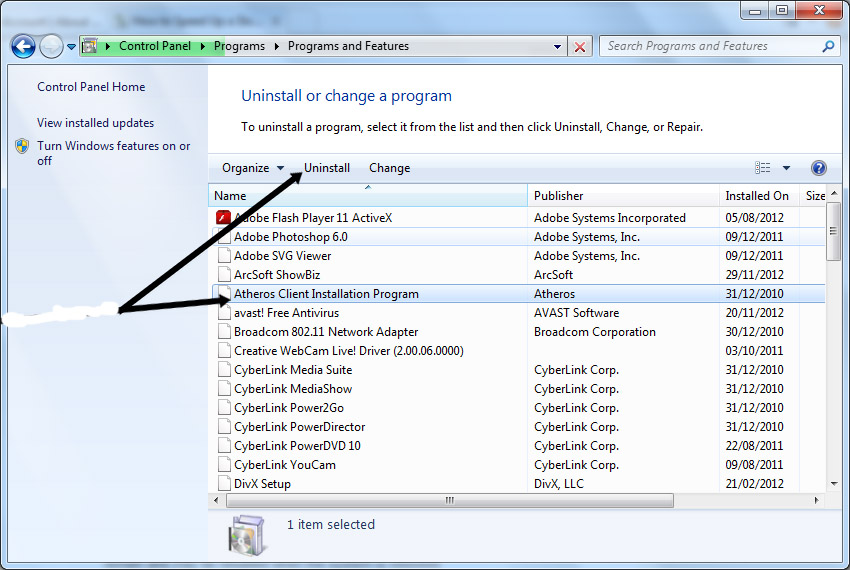
Step 7: Scroll down the list of programs and find any that you do not use. Click on the program in the list so that it is highlighted, then click on Uninstall. Follow the on screen instructions to remove the program.


Step 8: Run a 'Disk Cleanup'. A number of files and applications can use up memory and aren’t required – such as temporary files and cookies. Running Disk cleanup will allow you to remove any data that isn’t needed to free up more space on your hard disk.
 
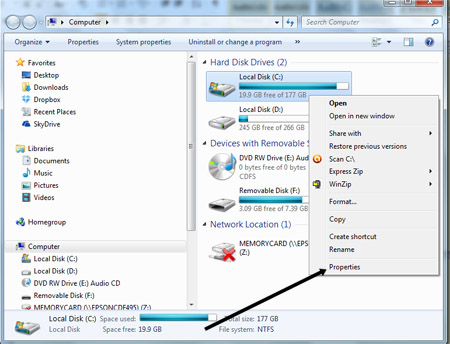
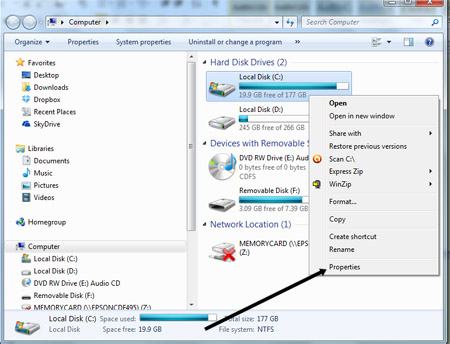
Step 9: From the Windows Start Menu, choose Computer. When the computer dialogue box opens up, right click on the C: and choose Properties from the menu.
 
 
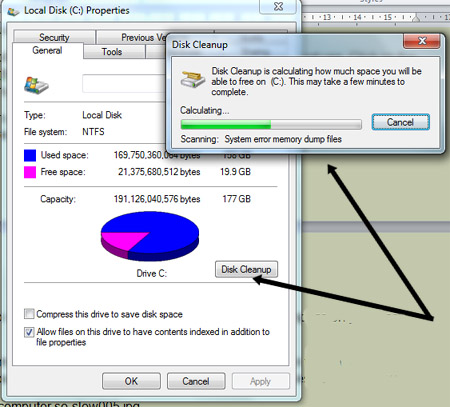
Step 10: Click on Disk Cleanup in the next window, the computer will then go through a number of files and programs to see what can be deleted. 
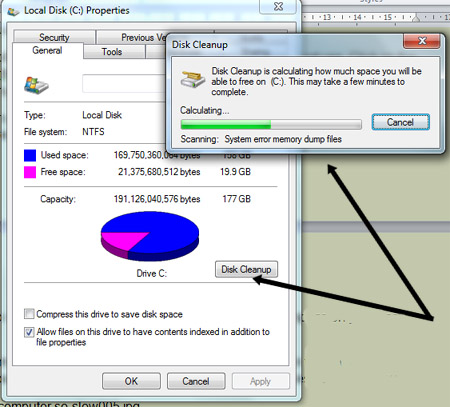


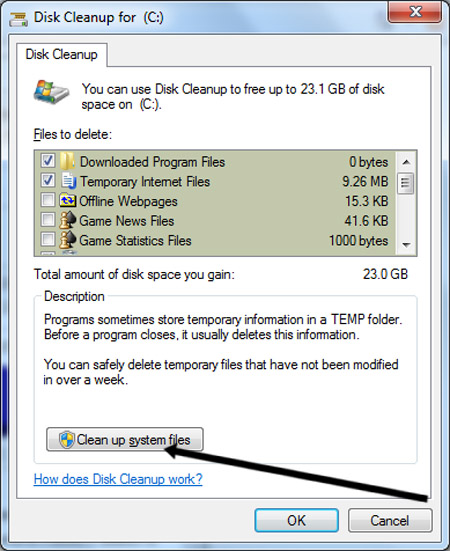
Step 11: Once it has done this, it will offer a list of possible files to delete.
 
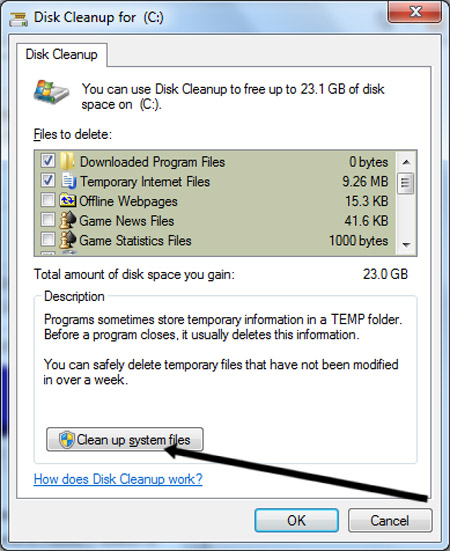
Step 12: Scroll down the list in the disk cleanup to see what you can delete to free up space. Click in the tick box to choose the item. When you have finished and are happy to delete the files, click on Clean up system files. 


How to use a mouse

Your computer mouse lets you move the cursor (pointer) round the screen and then ‘click’ to start a program or begin writing in a particular place or open a menu to see what choices you have. All desktop computers come with a mouse, and you can use one on a laptop if you don’t like the touchpad that’s built into it.

Invented in 1963 by Douglas Engelbart, the computer mouse has developed over the years and now comes in a variety of designs. It’s called ‘mouse’ because it has a basic mouse shape and the cable that attaches it to the computer looks like a tail. When referring to the device in the plural, both ‘mice’ and ‘mouses’ are acceptable, according to the Oxford English Dictionary.
 
Mice were first made with two gear wheels to define direction and then with a ‘trackball’, all of which moved in contact with a surface. Today optical mice that use light to detect direction are more common. Mice can also be cordless, making them easier to move.
 
Follow these step-by-step instructions to help you get to know your mouse
 
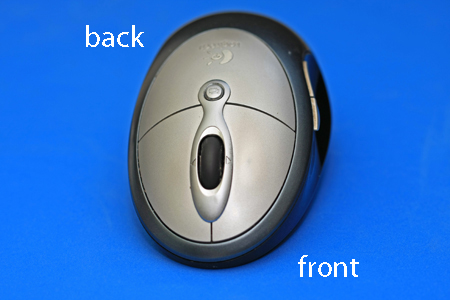
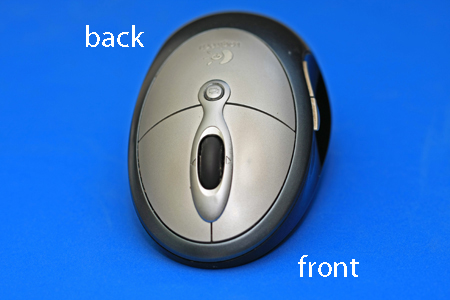
Step 1: Pick up your mouse and have a look at it.
 
Computer mouse
 
At the front (which points away from you), there are two buttons – left and right. You press or, more correctly, ‘click’ these to make things happen.
 
Most mice also have a wheel in between the buttons that you roll to move up and down the screen – technically called ‘scrolling’.
 
Computer mouse scrolling
 
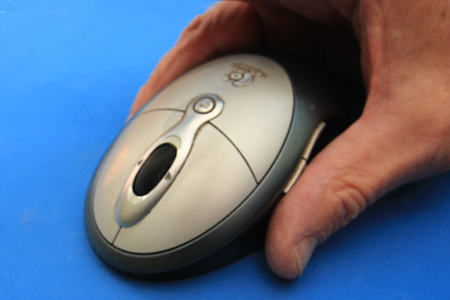
Step 2: Learn to hold your mouse comfortably. It’s normally held between your thumb and little finger like this:
 
Holding the mouse
 
Step 3: Have a click. Use your index finger to click the left button and your middle finger to click the right button:
 
Computer mouse buttons
 
If you’re left-handed, you can use the opposite fingers. However, you can also usually change the preferences on your computer to swap which buttons do what.
 
Step 4:  Try a double-click. This is done quite often on the left button. You have to click twice, as quickly as possible. The first click tells the computer that you are in a particular ‘window’, and the second click tells it that you’re selecting a button or link or whatever to do something in that window. If you click too slowly, the computer just thinks you’re telling it where you are again and again, so do click quickly.
 
Step 5: It’s time to practise. You’ll find some simple mouse exercises on the SeniorNet.org website. To reach them from here, place the cursor over the highlighted ‘simple mouse exercises’ above – this is known as a ‘link’ – and click the left button. Did you notice how the cursor turned into a little hand when it was over the link? That tells you that you can click on that word or phrase to go somewhere else on that website or on the internet as a whole.
 
Step 6: Now try a right-click. Just click the right button, paying no attention where the cursor is on the screen. A menu will appear, giving you options. Whenever you right-click, it opens a menu. If you move your cursor off the menu and left-click, the menu will close.
 
In other Digital Unite guides, you’ll often be told to ‘click’ and sometimes to ‘double-click’ or even ‘triple-click’. When it says this, it always means that you should use the left button. If you need to ‘right-click’, you’ll always be told to ‘right-click’!
Computers can freeze or ‘hang’ for a variety of reasons. It may be that there are a lot of programs open and it can’t manage to do many different tasks at once. It may be that there are a lot of programs installed on your computer and the hard drive is starting to get full so that the computer can’t function quickly and you might be asking it to do too much all at the same time.
 
Sometimes it can be because a program you are using is not compatible with your operating system or with other programs on the computer. Sometimes it will freeze because it has a fan issue or the CPU (central processing unit) is getting too hot or because you have installed hardware such as a new keyboard or mouse and the software for it is not up to date.
 
This guide has been written using Windows 7, however most Windows PCs will be similar.
 
The following guide will give a few pointers on what to do if your computer freezes
 
Step 1: Sometimes your computer will freeze for a short while whilst it carried out a lot of processes, so initially wait… and don’t be tempted to press more buttons or click on the screen, as this can give more tasks for the computer to do and compound the problem.
 
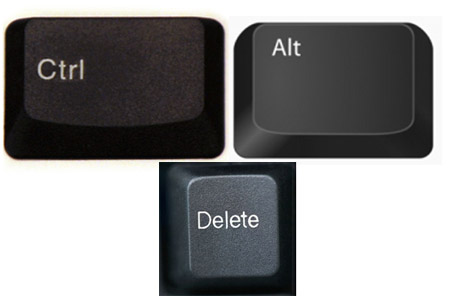
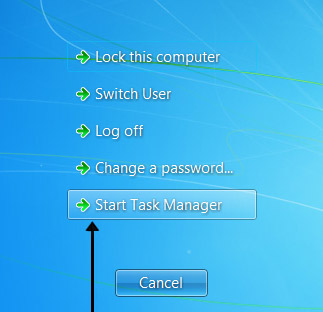
Step 2: If, after a few minutes, it still hasn’t unfrozen, press and hold the Ctrl, Alt and Delete key at the same time. (You may have a key saying DEL instead of Delete and they may be in different places depending upon what type of keyboard you have). 
 
 
Step 3: Once you have pressed Ctrl, Alt and Delete the following screen will come up. Choose Start Task Manager from the list on the screen.


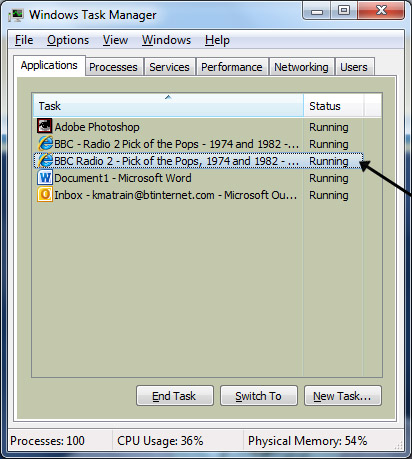
Step 4: A 'Task Manager' dialogue box will come up on the screen. Under the applications tab, a list of the applications and programs currently running will be shown. If the application is frozen, you may see ‘Not Responding’ in the status column next to it. 
 
 
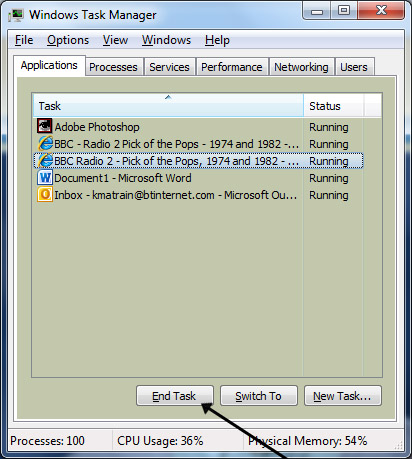
Step 5: Click on the application name, so that it is highlighted and then click End Task. You may have to do this a few times. 


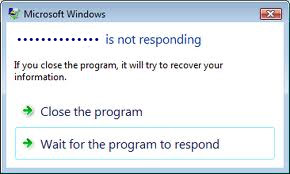
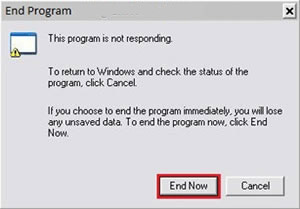
Step 6: You may then see the following dialogue boxes depending upon your operating system. Choose to End Program.


Step 7: If you do these steps and your computer continues to be frozen and won’t respond or you try to do Ctrl, Alt and Delete and still nothing happens, the last resort is to press and hold the power on button of your computer for a few seconds until the computer goes off. Wait a few seconds, then turn your computer back on again.
 
Step 8: If you find that your computer keeps freezing when you start a program, you may need to uninstall the program from your computer and find an alternative.
 
Step 9: From the start menu, choose Control Panel. Once the Control Panel is open, choose Uninstall a program.
 
Step 10: Scroll down the list of programs and find any that you do not use. Click on the program in the list so that it is highlighted, then click on Uninstall. Follow the on screen instructions to remove the program.
 
 
Step 11: If you find that your computer boots up but then freezes and you can’t uninstall the problem, you may have to re-boot but boot into 'safe mode'. This is where the computer starts up, but doesn’t load everything at the start. As soon as your computer restarts, press F8 a few times. Your computer should then load into safe mode and you can uninstall the troublesome application. Once it is uninstalled, reboot into normal mode.
 
Your computer may also freeze because it is running out of space on the hard drive. There are a few things you can do:
 
Step 1: Uninstall programs that you don’t use.
 
Step 2: Run a 'Disk Cleanup'. A number of files and applications can use up memory and aren’t required – such as temporary files and cookies. Running 'Disk Cleanup' will allow you to remove any data that isn’t needed to free up more space on your hard disk.
 
Step 3: From the 'Windows Start Menu', choose Computer. When the computer dialogue box opens up, right click on the C: and choose properties from the menu.
 
 
Step 4: Click on Disk Cleanup in the next window, the computer will then go through a number of files and programs to see what can be deleted. 


Step 5: Once it has done this, it will offer a list of possible files to delete.
 
Step 6: Scroll down the list in the disk cleanup to see what you can delete to free up space. Click in the tick box to choose the item. When you have finished and are happy to delete the files, click on Clean up system files. 
 
 
Step 7:  Update your antivirus software and do a complete and full scan. Sometimes viruses can cause a computer to freeze.

How to use a computer keyboard

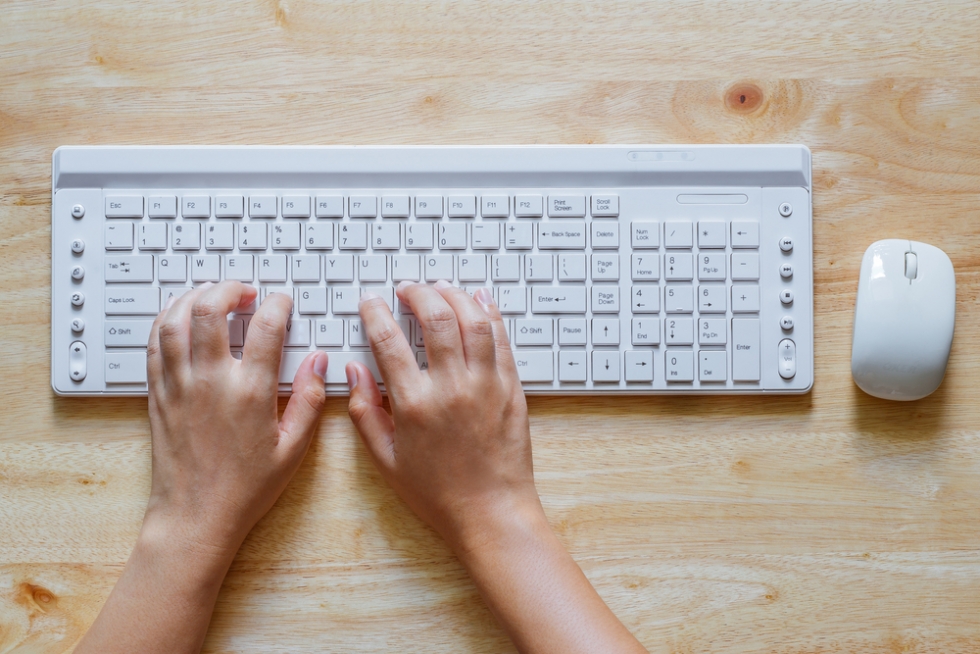
Keyboard using screenshot
The most common kind of keyboard is referred to as a ‘QWERTY’ keyboard after the keys on the top row of letters. It was invented by C L Scholes in the 1860s when he was working out the best place to put the keys on a manual typewriter.
Follow these step-by-step instructions to help you get to know what your keyboard can do
 
So that you can carry out the simple exercises below, you’ll need a document open to type into. Read our guides What is WordPad? and How to open WordPad. Then create a WordPad document and go through the following steps.
 
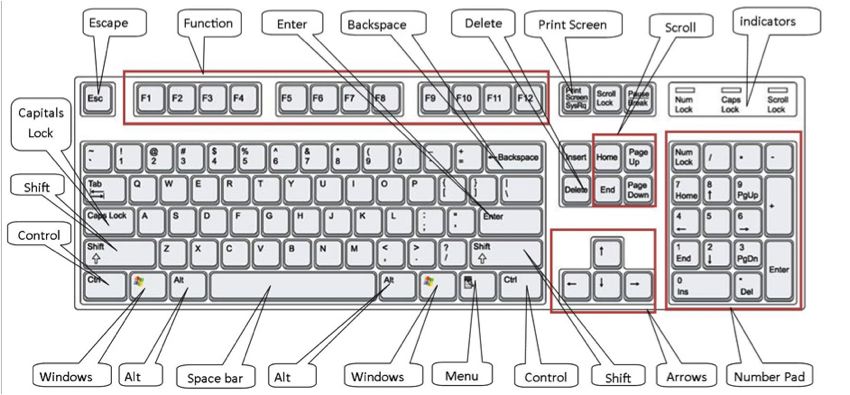
Step 1: Have a good look at your keyboard. The most important keys are labelled on the diagram below:
 
Computer keyboard diagram with labels
 
Click here for an enlarged version of the above diagram, which you can print out for easy reference.
 
Some keyboards, especially those on laptops, will have a slightly different layout. For example, yours might not have a number pad or the delete key may be in a different place. But virtually all keyboards will have these important keys somewhere.
 
Step 2: The main keys are the letter keys. When you type just using these, you get lower-case print. However, if you hold down a ‘shift key’ (there are two to choose from) at the same time as you type, you’ll get UPPER-CASE letters.
 
Try typing your name, including capitals (UPPER-CASE) and spaces. The ‘space bar’ (which you press briefly to make a space) is the wide key at the bottom of the keyboard.
 
Step 3: If you make a mistake in your typing, there’s always a remedy.
 
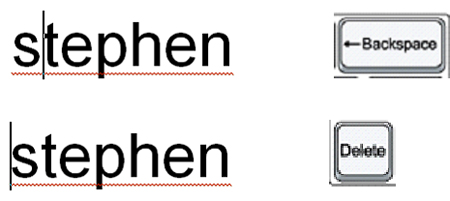
To delete a letter, place your cursor (mouse pointer) just after the letter and click. Then press Backspace briefly. (Always press briefly – otherwise, you’ll get repeated deletions, spaces, letters or whatever.) Or place your cursor just before the letter, click and press Delete.
 
Backspace and delete
 
Step 4: Now try typing a sentence:
 
 
This is a good sentence to practise because it contains most of the letters of the alphabet.
 
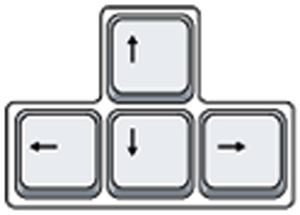
Step 5: You can move the cursor along this sentence without deleting anything by using the arrow keys:
 
The arrow keys
 
Try moving the cursor backwards and forwards through your sentence.
 
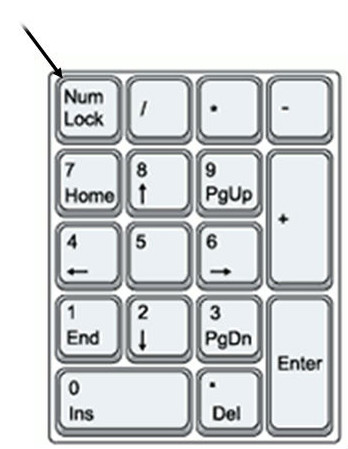
Step 6: Now try using the number pad, if you have one.
 
To use this to type numbers, you have to press the Num Lock key. There may be an indicator light at the top of the keyboard or on the ‘Num Lock’ key itself to show that it’s on.
 
Num Lock key
 
Step 7: You can also type using the numbers on the main keyboard. You’ll find them on the row of keys above the top line of letters.
 
Above these numbers are various symbols, which include ‘£’, ‘&’, ‘!’. To use these, hold down the Shift key while you type. So if you press ’7′ on its own, you get ’7′, but if you press ’7′ while you hold down the ‘Shift’ key, you get ‘&’.
 
Try typing:
 
 
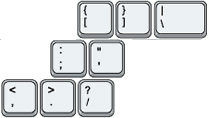
You’ll find similar extra symbols elsewhere on the keyboard:
 
Extra symbols
 
They operate in exactly the same way as the ones above the numbers.
 
Step 8: If you want everything to appear in upper case, press the Caps Lock key and then type:
 
Caps lock key
 
Again, an indicator light may come on to show that your capitals are ‘locked’. Don’t forget to press this key again when you’re finished to turn ‘Caps Lock’ off.
 
Step 9: The ‘Windows’ key comes in a number of different designs, such as the example to the right. 
 
It does exactly the same thing as the Windows button on the taskbar on your computer screen. You can choose to open the ‘Start’ menu by pressing this key or by clicking the button on the taskbar with your mouse.
 
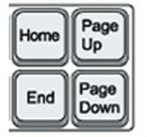
Step 10: There are a number of ways that you can move round a web page. Try using the keys below to see where they take you:
 
Move around a web page
 
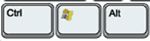
Step 10: You’ll be told to use the ‘Control’ (Ctrl) and ‘Alternate’ (Alt) keys for some operations. When you do so, keep holding down one or the other key or both keys while you press any other keys.
 
Control and alternate key
 
For example, if you press Ctrl, Alt and Delete all at the same time, a menu will open. To make it disappear, press the ‘Escape’ (Esc) key in the top left-hand corner of the keyboard.
 
Escape key
 
Step 11: Some of the things that you use the mouse for can be done with keyboard shortcuts. These require you to hold down one key while pressing another, and often involve using the ‘Ctrl’ and/or ‘Alt’ keys. Some people prefer using them to using the mouse. There are many shortcuts – check out the list provided by Microsoft Support.

How to compress a file

Compressed files use less disk space so they are easier to store and quicker and easier to send by email. Files that have been compressed must be uncompressed before they can be edited. 
 
You’ll need:
 
  • a computer
  • a file saved on your computer that you want to compress. 
This guide is based on a PC running Windows 7, but the steps in this process also apply to XP, Vista and Windows, and are very similar for Mac users. 
 
Follow these step-by-step instructions to how to compress a file
 
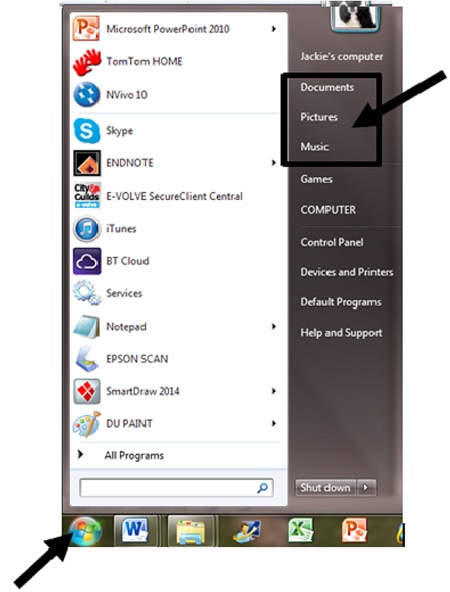
Step 1: Click the Start button in the bottom left-hand corner, and then click one of the library icons Documents, Pictures or Music to see any folders or files that have already been saved. Browse to find the file that you want to compress.
 
 
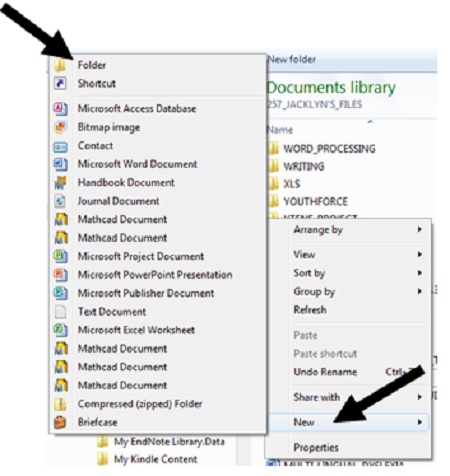
Step 2: If you wish to include two or more files and they are not already in a folder, you now need to put them into a folder. To create a new folder, right-click on the screen and scroll down to New and then to Folder. 
 
 
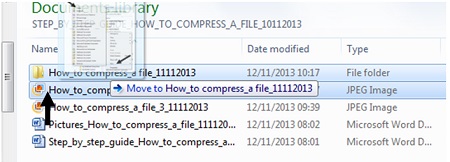
Type in the name of the folder in the space where the text is highlighted. Then simply click and drag the file(s) you want to compress into the new folder.
 
 
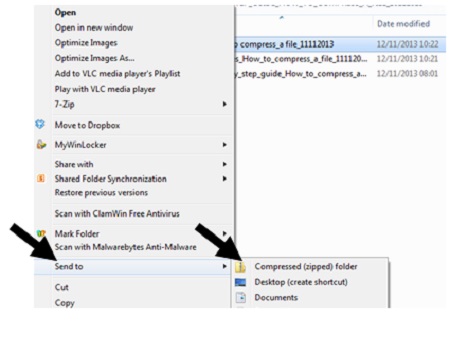
Step 3: When you are ready, right click on the file or folder that you want to compress. Select Send to from the menu which appears and select Compressed (zipped) folder from the list of options.
 
 
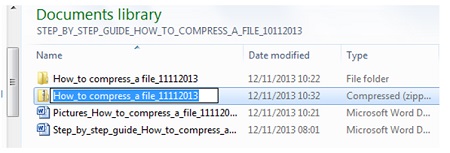
Step 4: This will create a compressed folder with the same name as your original folder and in the same location, to which your files will be copied. (Depending upon the size of your files, you might need to wait for this process to be completed. In this case a dialog box will appear to show you the progress of the compressing files.) 
 
 
Your compressed file is then ready for storage or to send as an email attachment.
 
Follow these step-by-step instructions on how to uncompress a file
 
Step 1: Browse to find the file you wish to uncompress.
 
Step 2: Right click on the file.
 
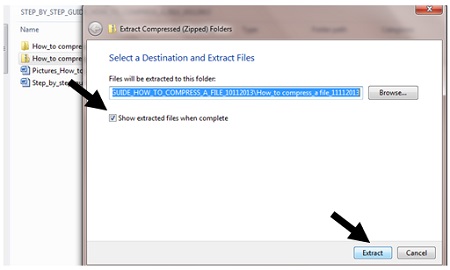
Step 3: Select Extract all… from the menu which appears. This will open the 'Windows Extraction Wizard'. Select Extract. Make sure that the check box is ticked for show extracted files when complete. Your folder and its contents will be available to view and to edit.


A guide to your computer desktop

Once you’ve turned on or logged on to your computer, what appears on your screen is called the 'desktop'. This is like an entrance – you go through it to find anything that you want to do on the computer.

Follow these step-by-step instructions to familiarise yourself with the basic parts of your computer desktop
 
This article assumes that you have a PC using Windows 7. The desktops of Apple Mac computers are quite different, as are those of earlier versions of Windows.
 
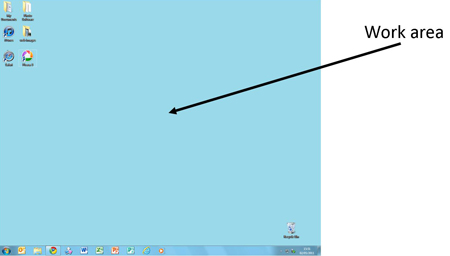
Step 1: The first, and most important, part is the 'work area', which occupies the majority of the computer screen.
 
Computer work area
 
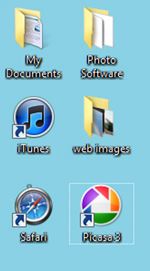
Step 2: If you use certain computer programs – now more commonly known as ‘applications’ or ‘apps’ – frequently, you can make it easier to reach them by placing a shortcut to them anywhere on your desktop in the form of an ‘icon’, like those below.
 
Shortcut icons on desktop
 
Step 3: At the bottom of the desktop is a darker narrow band. This is the ‘taskbar’. Here’s where you’ll find small icons of various important programs and, on the right, a ‘Notifications’ area.
 
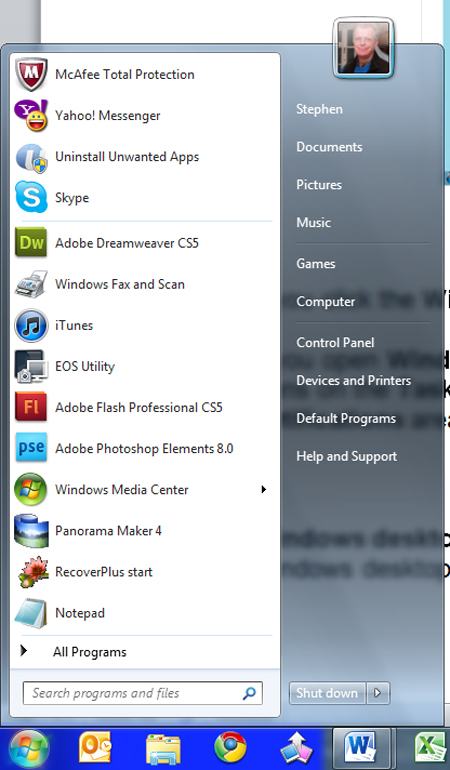
Step 4: If you press the ‘Windows’ icon in the far left-hand of your taskbar, you’ll get access to frequently used programs, the search box for programs and files, your documents, the ‘Shut down’ button and the control panel:
 
Windows frequently used programs
Windows explorer icon
 
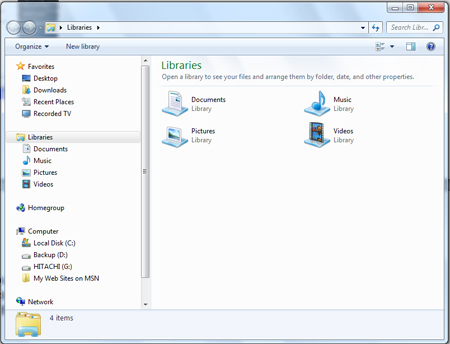
Step 5: When you click the Windows Explorer icon (see right)  in the taskbar, you’ll find the libraries where your documents, pictures, music and videos can be opened:
 
Windows libraries
 
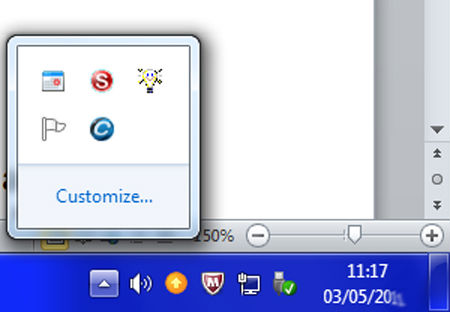
Step 6: Go to the far right of the taskbar. Messages from Windows appear here, in the ‘Notifications’ area – for example, telling you that a piece of hardware that you’ve just connected to is ready to use. You can also see the date and time, plus useful items such as the volume control (which you click to open). Some of the icons may be hidden, but you can see them by clicking the ‘up’ arrow on the left.
 
Windows hidden icons
 
Step 7: Now learn more about how the icons in the taskbar work.
 
You can ‘pin’ programs that you regularly use to the taskbar and then open them even if there’s another one already running in the work area.
 
When a program is running, its icon always appears in the taskbar, with a highlighted outline. And if this one program is doing more than one thing, this will also be indicated in the taskbar.
 
Here, the Windows Photo Viewer program is showing one photo: 
 
Windows photo viewer
 
Here, it’s open for two different pictures: 
 
Windows photo viewer
 
Here, it’s open for three different images: 
 
Windows photo viewer
 
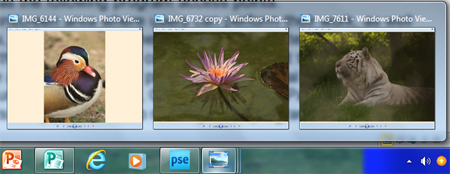
If you were to place your cursor over the Windows Photo Viewer icon now without clicking, a small view of each file that’s open will appear:
 
Windows photo viewer small view
 
You could now click on the view that you want to use to open that particular file.
 
This is how any program that you’ve opened more than once will work in the taskbar.
 
Step 8: The above steps comprise a summary of what the desktop does. To learn about more features, go to Microsoft’s own explanation, where you’ll also find a video.