Senin, 22 Mei 2017

How to choose a computer

Is your computer showing its age? Chugging laboriously while loading a website, making videos skip or taking half an hour just to start up in the morning? It’s probably time to get a new one!
 
Or maybe you don’t own a computer at all but have finally decided to join the digital age.
 
Either way, a trip to the computer shop is required, be it on the high street or online. But that can be a pretty daunting prospect – how do you decide from such a dizzying array of choices? This guide will help you through the confusion.
 
Follow these step-by-step instructions on how to choose a computer
 
Step 1: Work out whether you want a desktop computer or a laptop. If you’ll be using it in one place, a desktop will be cheaper and easier to modify, but laptops have the obvious benefits of mobility and smaller size. If you opt for the latter, check out our article Which laptop?
 
Step 2: Decide whether you want a PC or a Mac. There are some obvious and some subtle differences between them – have a look at our more detailed articles on What is a PC? and What is a Mac?). But in general, PCs are harder to use but are cheaper and have more software, and Macs are easier to operate but are more expensive and less software has been created for them.
 
Step 3: Probably the most important step of all: figure out how much money you’re willing to spend. Computers vary hugely in price and it’s easy to spend far more than you intend. You want to get as powerful a computer as possible for your cash, but you probably don’t want to go overboard.
 
Very basic PCs can cost below £200, but these are usually specialist models. Most mid-range PCs will set you back between £200 and £500, with high-end machines much more than that.
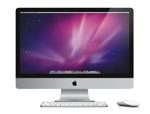
 
Apple iMacAn Apple iMac (left) ranges in price from £899 to £1,999, depending on how powerful you want it to be and how big a screen you prefer. But an iMac is an ‘all in one’ – that is, it’s a computer and screen combined, so you don’t have to pay separately for the latter. 
 
Step 4: Do you need to buy a screen? Also known as ‘monitors’, these can cost almost as much as a PC itself, so if you’ve already got a reasonable one, you might want to save money by sticking with it. Watch out, though – older monitors may not have the modern connectors that newer computers use.
 
If you do decide to get a screen, buy as big a one as you can afford – the difference in your productivity and the sheer enjoyment you’ll get just using your computer will make it worth your while.
 
Step 5: Decide how powerful a computer you need. If you’re planning on using it only for word processing and browsing the web, you can probably get by with a relatively less powerful machine. But if you’re doing some fancy image or video manipulation or want to play the latest games at their best, you’ll need a computer with a lot more heft. More power costs more money, but remember: the more powerful a computer is, the longer it will last before it needs to be replaced.
 
Step 6: You’ll have to settle on how big a hard drive you need. Hard drives are where the information on your computer is stored, and the more information you have, the bigger you’ll want to your hard drive to be.
 
Text files take up a tiny amount of space, so if that’s all you’re keeping, you’ll need hardly any space at all. However, if you’re keeping a large music, photo or video library, you’ll see that space filling up quickly, and if you’re doing video editing, you’ll need a very large hard drive indeed.

Which laptop?

Computers can be cumbersome, and it’s pretty natural to want something smaller that won’t take up too much space on your desk. So for this reason you might consider getting a laptop rather than a desktop model.
 
Or perhaps you already have a desktop machine and need something to carry around with you – say, because you often work away from home or you do a lot of travelling for pleasure?
 
Whatever the reason for the purchase, buying a laptop can be a confusing experience, so luckily we’re here to give you some tips on what to keep in mind when you’re shopping. For more general information on selecting a computer, see our article How to choose a computer.
 
Follow these step-by-step instructions on how to choose a laptop
 
Step 1: Decide whether you want a PC or a Mac laptop. PCs are usually cheaper but harder to use – and vice versa – but you’ll probably want to stick with what you’re already used to. (The prices mentioned below apply to PC laptops.)
 
Step 2: Figure out what you need your laptop for. Decide whether you want to have one as your main computer, one that’s basically a more portable desktop model. In this case, you can buy a laptop that’s a little too large and heavy for easy on-the-go use but has the benefits of power and a large screen. These laptops can cost from £500 to much, much more.
 
Step 3: Decide if you’re looking for a capable machine that you can carry with you on your travels. You’ll probably want one of the mid-range laptops, which usually have screens that are (diagonally) about 13 to 15 inches. These laptops can carry out all the basic tasks as well as allow you to watch videos and even play games – though probably not with all the settings turned on. You can expect to pay around £300 to £400 for this kind of laptop.
 
Step 4: Decide whether you’re only interested in basic web browsing and checking your email while on the go. If so, you might want to consider buying a small and light machine known as  a ‘netbook’. Compared to the other laptops, these are smaller and have less power and they also cost quite a bit less – some are available for under £100.
 
A word of warning, though – netbooks are frequently so low-power that they don’t use the standard Windows operating system, but a special version of of the ‘open source’ Linux one. They are simple to use, however, and should do everything you ask of them well.
 
Step 5: Finally, decide if you might want instead to go for a tablet computer like the iPad. If you don’t intend to do much typing, this could be a better bet than a netbook, especially if you want to do things like watch videos and play games. See our article What is a tablet computer?
 
Person on laptop

What we do

Digital Unite has been providing digital skills support for 21 years. Our customers choose us because they want a cost-effective, proven approach for building digital skills capacity.
We specialise in turning staff, residents and volunteers into effective Digital Champions – people who can stimulate the take up of online services and promote the confident and continued use of the internet.
The Digital Champions Network is our unique and comprehensive training and support system for Digital Champions. It’s trained thousands of Digital Champions across the UK from more than 30 member organisations including 4 local authorities and 17 housing providers.
Learn what’s inside the Digital Champions Network or see how we work with specific industry sectors.


What is Windows?

Windows is a collection of programs known as an operating system (OS) that controls a PC (personal computer). First produced by Microsoft in November 1985, it has been frequently updated since, as computer memory has got bigger, as processing chips have got faster and, of course, when the internet was invented. Prior to Windows, PCs were operated by a series of text commands.
Windows' key benefits and features

  • Allows the user to interact with the computer (through the keyboard, mouse, microphone, etc.).
  • Controls the storage of data (images, files, music).
  • Controls hardware attached to the computer such as webcams, scanners and printers.
  • Helps to open and close programs (word processors, games, photo editors, etc.), and gives them part of the computer’s memory to allow them to work.
  • Controls what access to a computer different users have and the computer's security.
  • Deals with errors and user instructions, and issues simple error messages.
  • Promotes multitasking by allowing the user to do several things on the computer at once – for example, watch a video while writing a letter.
Other operating systems are available, notably the Apple OS X used in Mac computers. In addition, with the increased use of smartphones, notepads and tablets, there are systems aimed directly at mobile devices. However, most people who learn to use computers do so on a system running Windows.

Five top tips for Mac users

Mac computerIf you’re used to using PCs and have recently changed to an Apple Mac computer, there are some subtle differences that you will need to get used to. Once you have got used to these, however, you will probably wonder how you ever coped with the old way of doing it!

 
  1. The keyboard is very different  It may not seem obvious at first glance, but Mac keyboards are different to Windows keyboards, in quite significant ways. For starters, there is only one mouse button, so right-clicking and left-clicking goes out the window. Apple has put together a comprehensive guide (link opens in new window) to the similarities and differences between the two types of keyboard. 
  2. Get protected  Apple machines were historically seen as immune to viruses and malware. Even now, Apple users will often advise each other not to bother running anti-virus software. This is not necessarily sensible advice.
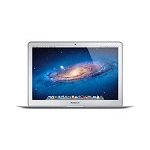
    While the smaller number of Macs to PCs means hackers generally focus their energy on the larger target group (PCs) this does not mean Apple machines are without security flaws. Nothing is perfect, even something as pretty as a MacBook Air. Apple’s browser, Safari, for example, has had several famous flaws highlighted in recent years.
    Sophos offers free tools for Mac home users (link to Sophos for Macs). 
  3. Shortcuts  Shortcuts are your friend on a Mac. And by shortcuts, we mean certain combinations of keys to quickly perform a task. Here are just a few of the basics
    ⌘ + Q = Quit
    ⌘ + W = Close window
    ⌘ + O = Open a file
    ⌘ + P = Print
    ⌘ + C = Copy
    ⌘ + V = Paste
    ⌘ + X = Cut
    ⌘ + S = Save
    ⌘ + Z = Undo
    ⌘ + A = Select All
    Fn + backspace = Delete
    For a fantastic and comprehensive list of shortcuts, www.mactipsandtricks.com has a handy guide.
     
  4. Desktop shortcuts can be very handy
     
    If you’re used to using your computer’s desktop as a dashboard to access files, you may wish to ease yourself into the Mac experience by creating a ‘Documents’ shortcut on the desktop, ditto a shortcut to Mail and Safari. This may clash with Steve Jobs’ vision of a clean, uncluttered desktop, but your layout has to work for you! After a while, you’re likely to be so comfortable with the Mac way of working, that you can ditch these shortcuts.
     
  5. Scrolling, scrolling, scrolling...
     
    The 'Trackpad' on a Mac scrolls ‘naturally’, which is the opposite to the Windows ‘downward scroll’ that you’re used to. This can be unsettling, but it’s easy to change if it makes you more comfortable. Go to Apple key > System preferences > Trackpad System Preference and uncheck ‘natural scroll direction’.

How to complete online forms

Online forms are completed by typing requested information into boxes (also known as ‘fields’) or choosing information from lists which can be presented in various ways. There may also be a range of options from which you can choose by clicking small boxes (called check boxes) or circles (called radio buttons). If you want to enter online competitions, or place online orders, you are likely to come across a lot of these forms!

 
Key features of online forms
 
  • Fields: These are boxes into which you type information.
 
 
  • Drop down lists: These fields have an arrow in them, when you click it you will see a list to choose from. Click an item in the list to choose it.
  • Check boxes: These are small boxes which you need to click in order to tick or untick as required. Watch out for these at the bottom of forms with the ‘small print’. You may also need to tick a box to confirm that you’ve read the terms and conditions of the website and there should be a link to click on e.g. here is a link to the terms and conditions for the DU website http://digitalunite.com/terms-conditions.  Always make sure you read them so that you know what you are signing up for. 
  • Radio buttons: These are small circles which you click to select. The one you’ve clicked will have a dot in it. 
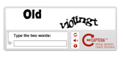
  • CAPTCHA: This is a box with some random letters or numbers in it which you have to copy into the box below. This confirms that you are a human being and not an automated program. To find out more, see our guide What is CAPTCHA?. If you can’t read the characters, click the refresh icon  for a different challenge. 
  • Submit button: This button needs to be clicked on to send the completed form. It may say ‘Submit’ or something similar, depending on the purpose of the form. Make sure you click this just once. If you ‘double click’ you may send the form twice.
  • If there is a problem with the form, for example you’ve forgotten to complete an essential field, it won’t be submitted but you will receive an automated message telling you something is wrong and the problem area of the form is usually highlighted in red. You will need to complete that field and submit the form again.
 
Important things to remember
 
  • Never complete personal or bank information unless you have checked that you are on a secure website. The website address should start with https (the ‘s’ stands for secure) and you should see a padlock icon. 
  • The insertion point (or cursor) must be in a field before you can type into it. If it isn’t there, place your mouse pointer in the field and do a left click.
  • The quickest way to move the insertion point to the next field is to press the Tab key on your keyboard, but you can also click into it with your mouse.
  • Don’t press the Enter key until you’ve finished completing the form. If you press it earlier, it may think you’ve finished which means that you will probably have to start again from the beginning.
  • Make sure you only enter the information that is requested. If a question doesn’t apply to you, leave it blank.
  • An asterisk * means the information is essential.  
  • Password, dates, telephone numbers and postcodes usually need to be typed in a certain format e.g. with or without a space. There may be an explanation of what’s required written next to or below the field.
  • Sometimes, clicking an i or ? next to a field will give you information about how to complete it.
  • Clicking an icon like this next to a date field will open a calendar – click on a date to choose it.

How to turn on a computer

Turning on your computer isn’t always easy. Some manufacturers hide the ‘on’ button – for instance, on top of the case or flat on the front where you can’t see it. When you get your computer, don’t be embarrassed to ask: ‘Where’s the “on” button?’

Follow these step-by-step instructions to help you turn on your computer
 
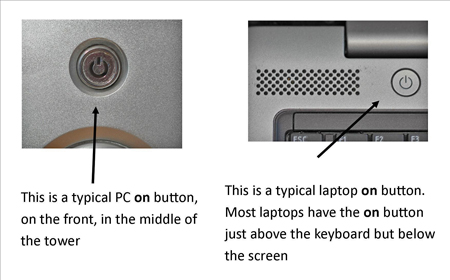
Step 1: Find the ‘on’ button. It probably looks like this (but might be square or oblong!):
 
PC and Laptop on button
 
Step 2: Push the button.
 
On some computers, the button lights up when the computer is on. On laptops, there’s often a light on the front that comes on. You may have to keep pushing for a couple of seconds to make this happen, but don’t worry – you’ll soon get to know how your computer works.
 
If nothing happens, there are a few things you can check easily:
 
  • If you’re using a laptop, the battery might be flat. So plug in the charger, plug the charger into the mains and let the laptop recharge. You can continue to use it while it’s doing this.
  • If you have a PC, make sure that the plug or any of the other wires haven’t become disconnected.
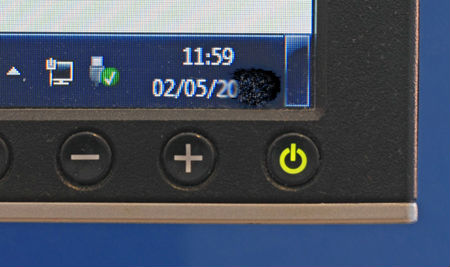
  • Ensure that the monitor is turned on. Most PC monitors have an ‘on/off’ button on the bottom corner of the screen (see below). The button often lights up green when the monitor is on.
Monitor on/off button
 
Step 3: Now you need to log in.
 
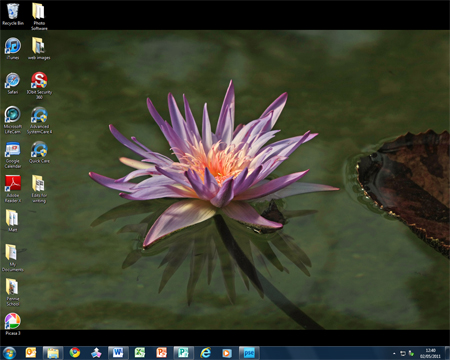
If you’re the only user of your computer, once it’s turned on it may go straight to the desktop:
 
Desktop
 
If you’re using a public computer – for example, in a library – you’ll be given instructions (and help if you ask for it) on how to log in.
 
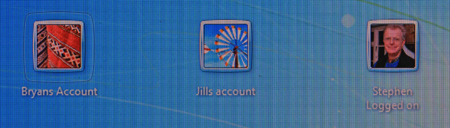
If you’re sharing your computer with other people, each one will usually have their own account. When you turn on the computer, the screen will look something like this:
 
Log on accounts
 
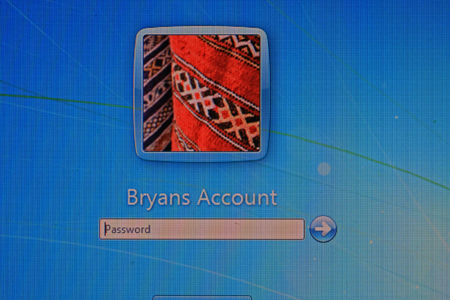
When you click the icon above your name, you’ll be asked for a password. The main user or administrator should set this up for you before you begin. Type in your password and click the arrow.
 
Computer account
 
Done!
 
Top tip: surge protectors
 
If you have a PC, it’s a good idea to buy a ‘surge protector’. This prevents your computer being damaged if there’s a sudden problem with your electricity supply. You can buy surge protectors that let you plug all your separate pieces of equipment into them, in addition to your computer. Then when you turn your computer on or off, this automatically turns them on or off, too.